
How to Send ASO Alerts to Slack (Webhook Setup Guide)
Quick answer: To send ASO alerts to Slack, create a Slack incoming webhook (Slack app → Incoming Webhooks → Add to a channel), copy the
https://hooks.slack.com/services/…URL, then in ASOScan go to Settings → Webhooks, choose the Slack format, paste the URL, and click Send test. ASOScan then posts a message to that channel whenever a subscribed event fires — rank drops, competitor changes, new reviews, and more. Webhooks are a Business-and-up feature.
Last updated: June 2026.
ASO is a monitoring job as much as an optimization job. A keyword you worked for slips three spots, a competitor rewrites their title, a wave of one-star reviews lands overnight — and the sooner you know, the cheaper the fix. The problem is that the news sits in a dashboard nobody checks at 9pm. ASOScan's Slack webhook puts those events in the channel your team already lives in, so you react in minutes instead of on your next login. Here's the full setup, and what you get for the five minutes it takes.
What you'll gain
- Faster reactions, in the channel you already watch. Rank drops, competitor metadata changes, and review spikes show up in Slack as they happen — no polling, no second dashboard to remember.
- The whole team sees it, not just whoever's logged in. Post to
#aso,#app-growth, or a client channel and everyone reacts together. - Zero code. A Slack incoming webhook is a URL. Paste it into ASOScan and you're done — there's no signature to verify and nothing to host.
- One honest caveat: alerts shorten your reaction time. They don't change your ranking. ASOScan tells you what moved and when so you can decide what to do — it never claims an alert is a ranking signal.
What ASOScan can post to Slack
ASOScan sends a short, readable message per event. You choose which events each channel subscribes to.
| Event | When it fires | Example Slack message |
|---|---|---|
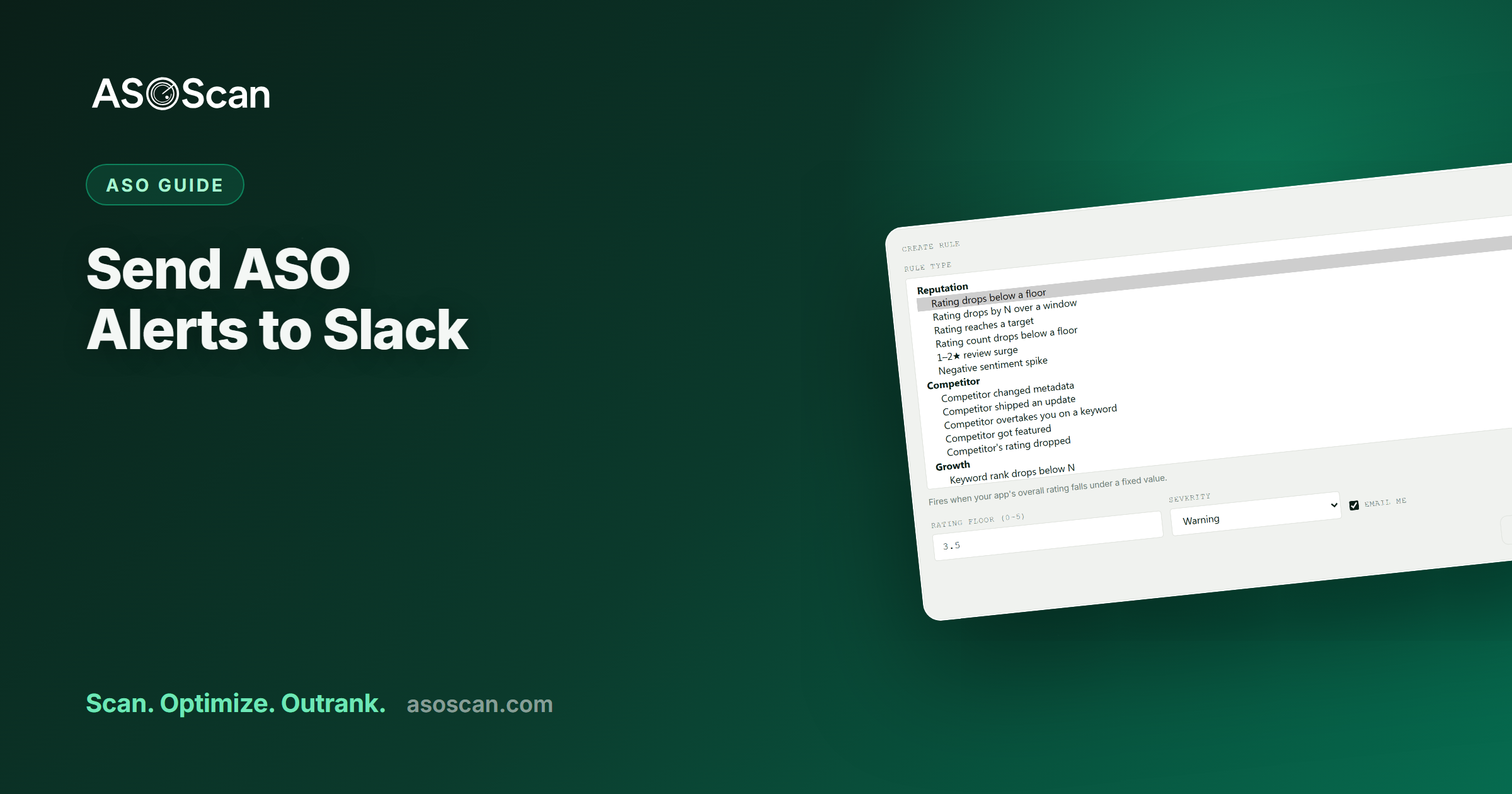
| Alert triggered | One of your alert rules trips — a rank drop, a rating drop, a competitor overtaking you, and 20+ more | 🔔 Lumen: "meditation timer" dropped to #18 |
| Keyword rank updated | Your tracked keyword ranks refresh after a sync | 📈 12 keyword rank(s) updated. |
| Competitor metadata changed | A tracked competitor edits its title, subtitle, or description | 📝 Calm changed its subtitle. |
| Review analyzed | New reviews are scored for sentiment, topics, and bugs | 💬 7 review(s) analyzed. |
| App sync completed | A scheduled or manual data sync finishes | 🔄 Sync completed. |
| Opportunities ready | Fresh keyword opportunities finish computing | ✨ New keyword opportunities are ready. |
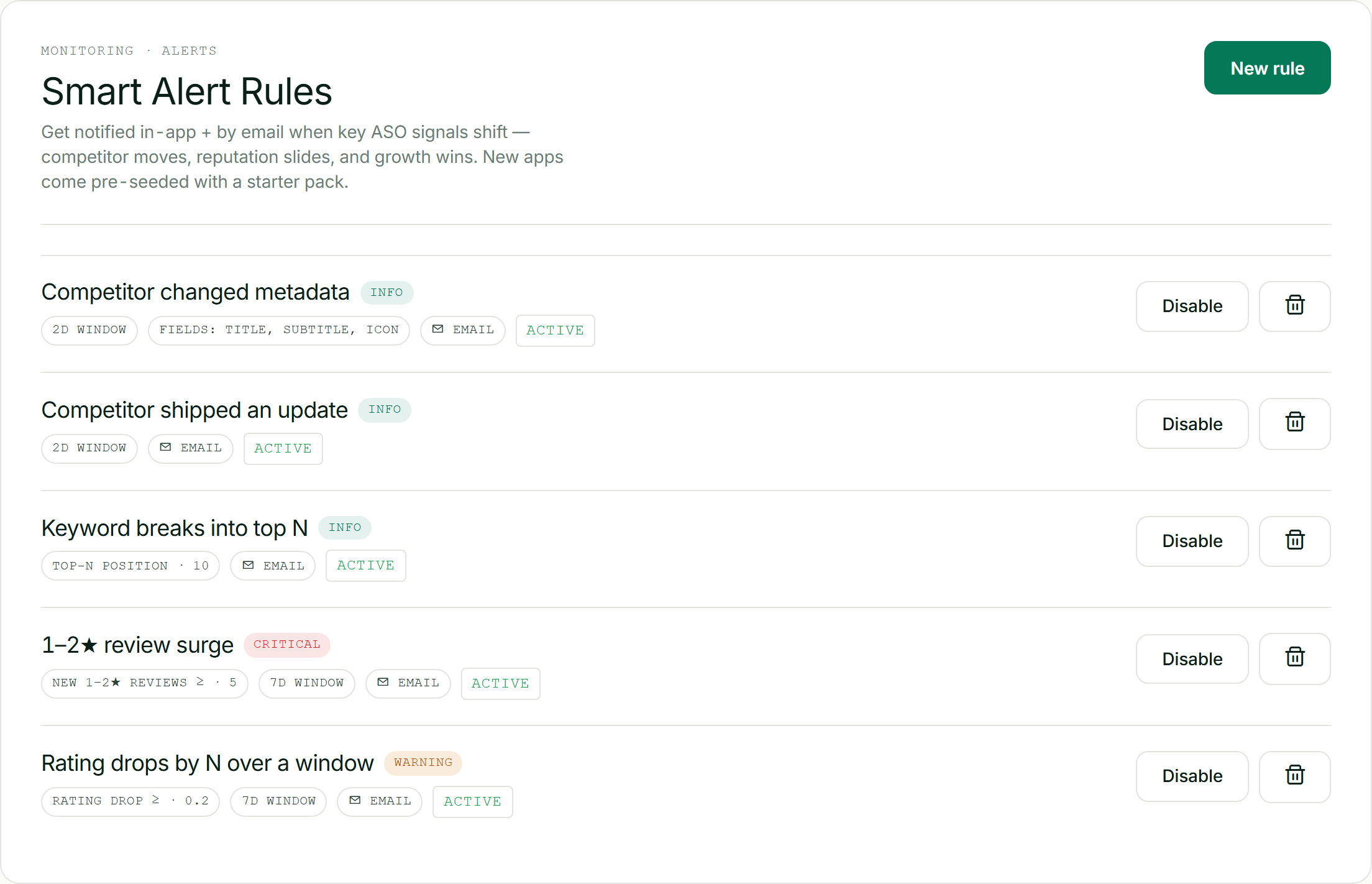
Your alert rules in ASOScan — each one that trips becomes a message in your channel.
How to create a Slack incoming webhook
A Slack incoming webhook is a per-channel URL that posts messages into Slack. You create it once.
- Go to api.slack.com/apps and click Create New App → From scratch. Name it (for example, "ASOScan") and pick your workspace.
- In the app's left sidebar, open Incoming Webhooks and toggle Activate Incoming Webhooks on.
- Click Add New Webhook to Workspace, choose the channel you want ASOScan to post in, and click Allow.
- Copy the Webhook URL. It looks like
https://hooks.slack.com/services/T00000000/B00000000/XXXXXXXXXXXXXXXXXXXXXXXX.
That URL is the secret — anyone who has it can post to your channel — so treat it like a password. If it leaks, delete the webhook in Slack and create a new one.
How to connect it to ASOScan
- In ASOScan, open Settings → Webhooks.
- Click Add endpoint and choose the Slack delivery format.
- Paste your
hooks.slack.comURL. - Tick the events you want this channel to receive (you can change them later).
- Click Add endpoint, then Send test. A test message appears in your Slack channel within a second or two.
That's it. From now on, every subscribed event posts to that channel automatically. Want different events in different places — rank drops to #aso, client-facing summaries to a client channel? Add a second endpoint with its own Slack URL and its own event selection.
How the message is formatted
ASOScan sends Slack a simple {"text": "..."} payload, which Slack renders natively — a bold title line followed by a one-line summary with a small emoji so the event type is scannable at a glance. There's no card builder to configure and no signing secret to manage, because the webhook URL itself is the credential. (If you'd rather receive the raw, HMAC-signed JSON for your own automation instead of a chat message, ASOScan also offers a json delivery format — see the API and webhooks page.)
Which alerts are worth routing to Slack
Not every event deserves a ping. A practical starting point:
- Always: Alert triggered (your rank-drop, rating-drop, and competitor-overtake rules) and Competitor metadata changed. These are time-sensitive and ask for a human decision.
- Often useful: Review analyzed if reputation is a priority, and Opportunities ready if you action keyword suggestions weekly.
- Optional: Keyword rank updated and App sync completed are higher-volume and best left to a low-traffic channel or off entirely, so the important ones don't get buried.
The goal is signal, not noise. Start narrow, and add events once you trust the channel.
Plans
Webhooks — including Slack and Microsoft Teams delivery — are available on Business and above. See pricing for the breakdown. If you use Microsoft Teams instead of (or alongside) Slack, the setup is just as quick: see How to send ASO alerts to Microsoft Teams.
Frequently asked questions
Do I need to write any code to send ASO alerts to Slack?
No. A Slack incoming webhook is a URL you generate in Slack's app settings. You paste it into ASOScan's Settings → Webhooks, pick the Slack format and the events you want, and click Send test. ASOScan posts a formatted message to that channel for every subscribed event — there's nothing to host and no signature to verify.
Will sending alerts to Slack improve my app's ranking?
No, and we won't imply otherwise. Webhooks shorten your reaction time — you find out about a rank drop, a competitor change, or a review spike as it happens instead of on your next login. What you do with that information can affect your ranking; the notification itself is not a ranking signal.
Can I send different events to different Slack channels?
Yes. Each ASOScan webhook endpoint has its own URL and its own event selection, so you can create one Slack webhook for #aso that receives rank drops and competitor changes, and another for a client channel that only receives weekly opportunity summaries. Add as many endpoints as you need.
Is the Slack message signed or verified?
No — and it doesn't need to be. For Slack and Teams delivery, the channel webhook URL is the secret, so ASOScan posts the message without an HMAC signature. If you want a signed, verifiable payload for your own backend instead of a chat message, use ASOScan's json delivery format, which sends an HMAC-SHA256-signed envelope you can verify with the X-ASOScan-Signature header.
What happens if my Slack webhook stops working?
If a channel webhook starts failing — for example, you deleted it in Slack — ASOScan retries delivery with backoff, and if it keeps failing it automatically disables that endpoint so it stops trying. You'll see the endpoint's status in Settings → Webhooks, where you can update the URL or remove it.