
How to Send ASO Alerts to Microsoft Teams (Workflow Setup)
Quick answer: To send ASO alerts to Microsoft Teams, create a Workflow in Teams from the template "Post to a channel when a webhook request is received" (Power Automate), copy the URL it generates, then in ASOScan go to Settings → Webhooks, choose the Teams format, paste the URL, and click Send test. ASOScan posts a card to that channel whenever a subscribed event fires — rank drops, competitor changes, new reviews, and more. Webhooks are a Business-and-up feature.
Last updated: June 2026.
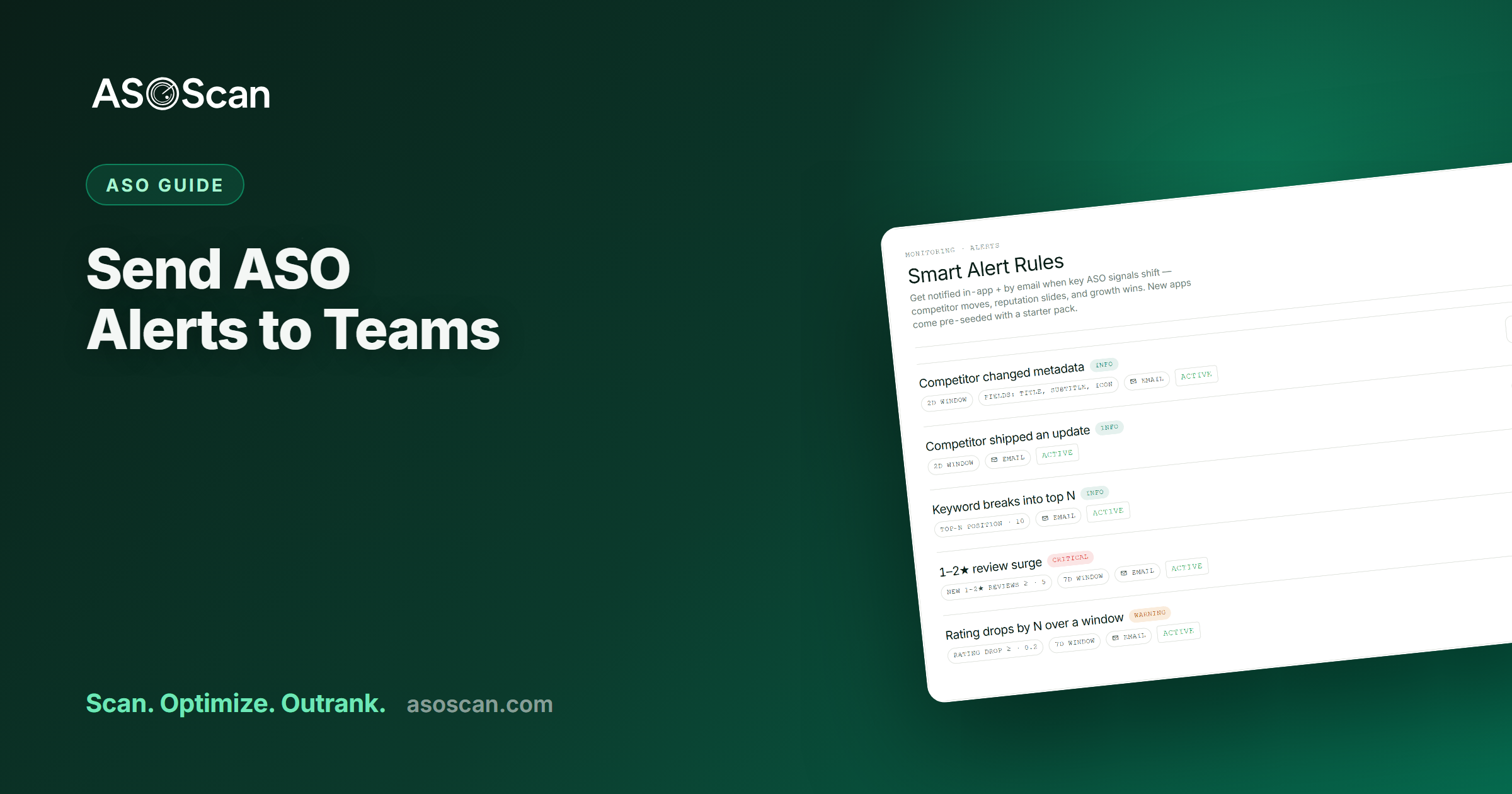
The same logic that makes Slack alerts useful applies to Microsoft Teams: ASO events are time-sensitive, and the team that needs to act on a rank drop or a competitor's relaunch usually sees it fastest in the channel they already have open. ASOScan posts those events straight into a Teams channel as a card. The setup is a little different from Slack — Microsoft now routes incoming webhooks through Power Automate "Workflows" rather than the old connector — but it's still a five-minute, no-code job. Here's the full walkthrough.
What you'll gain
- ASO events land in Teams as they happen. Rank drops, competitor metadata changes, and review spikes show up as cards in the channel your team watches — no polling, no second dashboard.
- Everyone reacts together. Post to your growth channel or a client channel and the whole team sees the same alert at the same time.
- No code, no hosting. A Teams Workflow gives you a URL. Paste it into ASOScan and you're done.
- One honest caveat: alerts shorten your reaction time. They don't change your ranking. ASOScan tells you what moved and when; a notification is never a ranking signal.
What ASOScan can post to Teams
ASOScan sends a short card per event, and you choose which events each channel subscribes to.
| Event | When it fires | Example card |
|---|---|---|
| Alert triggered | One of your alert rules trips — a rank drop, a rating drop, a competitor overtaking you, and 20+ more | 🔔 Lumen: "meditation timer" dropped to #18 |
| Keyword rank updated | Your tracked keyword ranks refresh after a sync | 📈 12 keyword rank(s) updated. |
| Competitor metadata changed | A tracked competitor edits its title, subtitle, or description | 📝 Calm changed its subtitle. |
| Review analyzed | New reviews are scored for sentiment, topics, and bugs | 💬 7 review(s) analyzed. |
| App sync completed | A scheduled or manual data sync finishes | 🔄 Sync completed. |
| Opportunities ready | Fresh keyword opportunities finish computing | ✨ New keyword opportunities are ready. |
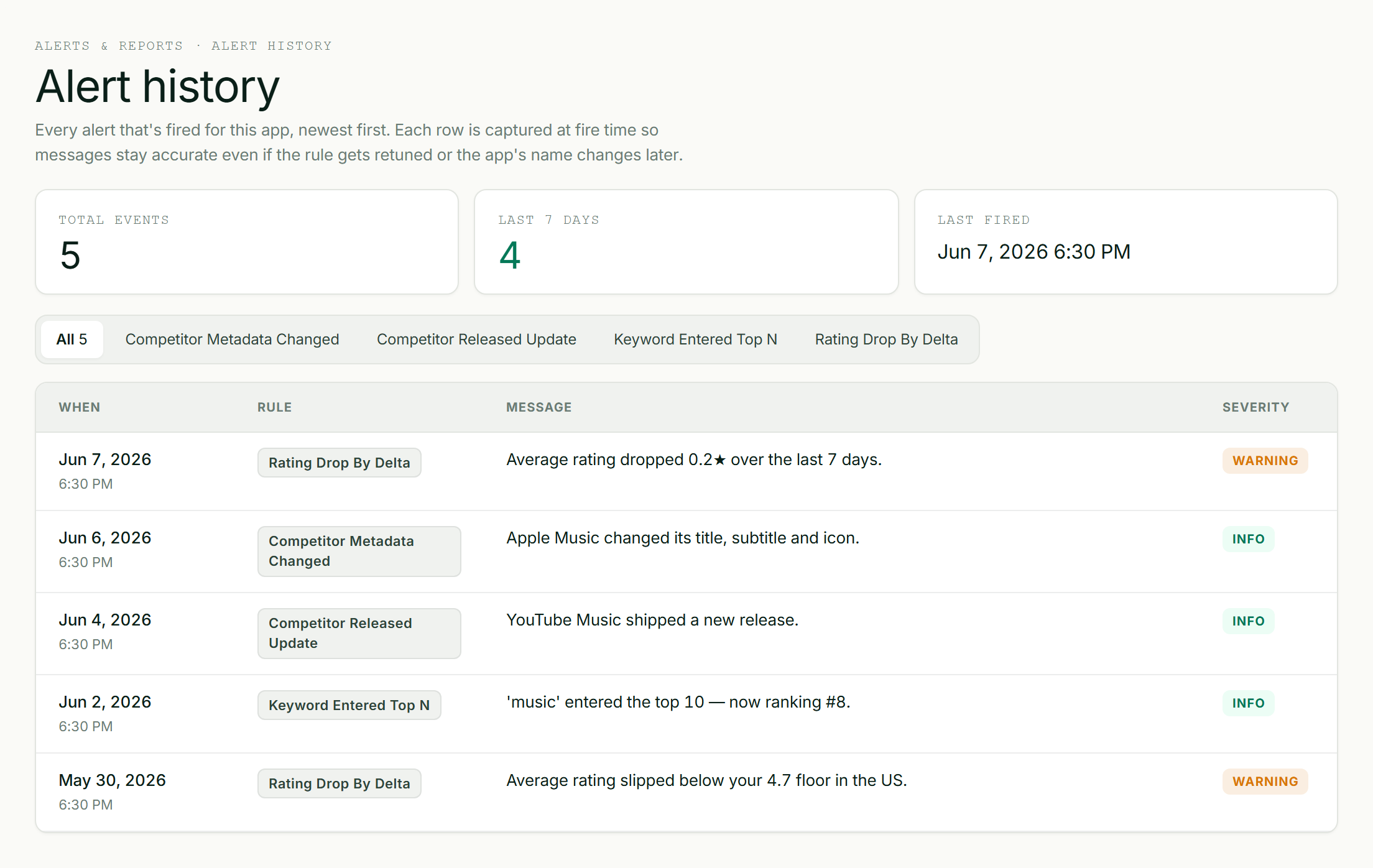
Every alert ASOScan records can be delivered to your Teams channel as a card.
Why Power Automate, not the old "Incoming Webhook" connector
If you've set up Teams webhooks before, you may remember adding an Incoming Webhook connector to a channel. Microsoft is retiring Office 365 connectors and now points everyone to Workflows (built on Power Automate) instead. Workflows is the current, supported path, so that's what this guide uses — and it's why ASOScan sends Teams an Adaptive Card (the format Workflows renders) rather than the legacy connector's card. If a search led you to the connector method, use the Workflows steps below instead.
How to create the Teams webhook (Workflows)
You create a Workflow once, from a Microsoft-provided template. No flow-building knowledge needed.
- In Microsoft Teams, open the channel you want alerts in, click the ⋯ (More options) next to the channel name, and choose Workflows. (You can also start from the Workflows app in Teams, or from make.powerautomate.com.)
- Search for and select the template "Post to a channel when a webhook request is received."
- Sign in / confirm the connection when prompted, then choose the Team and Channel where ASOScan should post. Click Create flow (or Add workflow).
- The Workflow generates an HTTP POST URL — copy it. It looks like
https://prod-XX.XXX.logic.azure.com/workflows/…/triggers/manual/paths/invoke?api-version=….
If you close the dialog before copying it, you can get the URL back later: open the flow, click the first step (When a Teams webhook request is received), and copy the HTTP POST URL shown there. Treat that URL like a password — anyone who has it can post to your channel.
How to connect it to ASOScan
- In ASOScan, open Settings → Webhooks.
- Click Add endpoint and choose the Teams delivery format.
- Paste the Workflow URL you copied.
- Tick the events you want this channel to receive (you can change them later).
- Click Add endpoint, then Send test. A test card appears in your Teams channel within a few seconds.
From then on, every subscribed event posts to that channel automatically. Need different events in different places? Add a second endpoint with its own Workflow URL and its own event selection.
How the card is formatted
ASOScan sends Teams an Adaptive Card wrapped in the message format that Power Automate Workflows expects, so the Workflow renders it as a card with a bold title and a one-line summary. There's no card designer to configure on your side and no signing secret to manage, because the Workflow URL itself is the credential. (If you'd rather receive the raw, HMAC-signed JSON for your own automation instead of a chat card, ASOScan also offers a json delivery format — see the API and webhooks page.)
Which alerts are worth routing to Teams
Aim for signal, not noise:
- Always: Alert triggered (your rank-drop, rating-drop, and competitor-overtake rules) and Competitor metadata changed — time-sensitive events that ask for a human decision.
- Often useful: Review analyzed if reputation matters to you, and Opportunities ready if you action keyword suggestions on a regular cadence.
- Optional: Keyword rank updated and App sync completed are higher-volume — keep them in a low-traffic channel or off, so the important alerts don't get buried.
Start with a narrow set and widen it once you trust the channel.
Plans
Webhooks — including Microsoft Teams and Slack delivery — are available on Business and above. See pricing for the breakdown. Prefer Slack, or want both? The Slack setup is just as quick: see How to send ASO alerts to Slack.
Frequently asked questions
Do I still use an Incoming Webhook connector for Teams?
No. Microsoft is retiring Office 365 connectors and now routes incoming webhooks through Workflows (Power Automate). Create a Workflow from the template "Post to a channel when a webhook request is received," copy the URL it generates, and paste it into ASOScan's Settings → Webhooks with the Teams format. ASOScan sends an Adaptive Card, which is what Workflows renders.
Do I need to build a Power Automate flow myself?
No. You start from a ready-made Microsoft template, pick your team and channel, and it builds the flow for you. The only thing you copy out is the HTTP POST URL it generates — you paste that into ASOScan, and you're done. There's nothing to design or maintain.
Will sending alerts to Teams improve my app's ranking?
No, and we won't imply it does. Webhooks shorten your reaction time — you learn about a rank drop, a competitor change, or a review spike as it happens instead of on your next login. What you do next can affect your ranking; the notification itself is not a ranking signal.
Can I send different events to different Teams channels?
Yes. Each ASOScan webhook endpoint has its own URL and its own event selection. Create one Workflow for your growth channel that receives rank drops and competitor changes, and another for a client channel that only receives weekly opportunity summaries. Add as many endpoints as you need.
What happens if the Teams Workflow stops accepting messages?
If delivery to a Workflow URL starts failing, ASOScan retries with backoff, and if it keeps failing it automatically disables that endpoint so it stops trying. You'll see the endpoint's status in Settings → Webhooks, where you can paste a fresh Workflow URL or remove it.