Every ASO copy change has a reach number. See it before you publish.
Draft a new title, subtitle, or description against your tracked keywords. See which terms flip into coverage, how much extra search volume each gain represents, and a side-by-side diff against your live store listing. Save versioned drafts. Let AI fill the gaps, or edit by hand.
7-day free trial, no credit card.
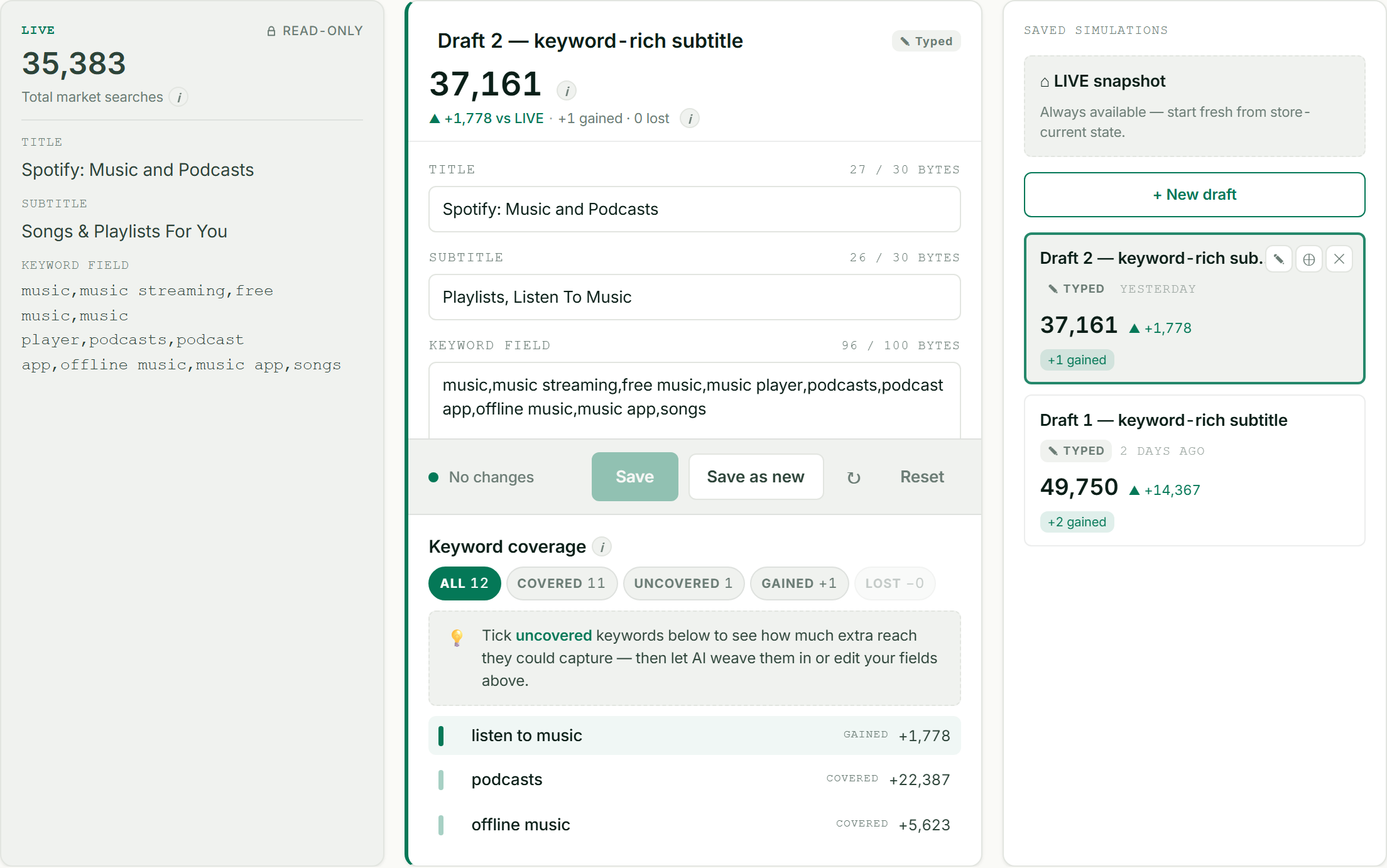
Draft on one side, your live listing on the other, and the reach each change is worth.
You can't test ASO copy in the App Store Console.
Submit a metadata change, wait for review, see the rank shift two weeks later, guess at causation. That's how every team without a simulator works. Probably yours too.
The simulator collapses that loop into seconds. Edit your title or description in a draft. Your tracked keywords reclassify the moment you stop typing coveredgainedlost, and the page tells you the upper-bound search volume each change is worth.
Reach math you can trust
Every gap keyword shows its MaxReach: the monthly searches you'd be eligible for if you covered it. Sum them and go after the biggest first.
Two ways to fill the gap
Tick the keywords you want to capture. Click Generate and AI weaves them into your description in your tone, in the right language for your storefront. Or edit the fields directly; both paths land in the same draft.
Versioned drafts, side by side
Save AMEND, save REWRITE, save your manual edit, compare them in the saved column. Bring a draft back two weeks later and the math recomputes against today's keywords and current volume data.
Four steps. No publishing required.
- 1
We pre-compute coverage
Open the simulator and your live store metadata is already running against your tracked keyword set for the active country. Coverage is a literal regex match: your title or description either contains the keyword's tokens or it doesn't.
- 2
You edit fields in the draft column
Title, subtitle, keyword field on iOS. Title, short description, full description on Android. Reach math and coverage diff update with every keystroke (debounced, so we're not hammering the API).
- 3
Tick the gaps, generate or edit by hand
The "Untapped reach" panel shows the search volume you'd be eligible for if you covered them all. Click Generate and AI proposes AMEND and REWRITE variants. Or skip the AI and edit by hand; you end up in the same draft either way.
- 4
Save the drafts you like
Every save is a named row in the right column. Switch between drafts to compare; nothing's published until you copy the text into App Store Connect or Play Console yourself.
What "reach" actually means.
The simulator's reach numbers are a ceiling, not a forecast. Here is the math, so you can read them correctly:
- MaxReach per keyword is calibrated against the search-volume signal we have for that term in your country.
- TMS (Total Market Searches) is the sum of MaxReach across the keywords your metadata covers.
- Indexing makes you eligible. Ranking captures the searches. Having a keyword in your metadata makes you appear in its results; your rank determines whether anyone clicks. The simulator's reach number is the upper bound; your real share depends on where you land in rankings.
Used right, the number tells you which gaps are worth chasing, not how many installs you'll bank.
Honest answers, including the "no"s.
Why don't reach numbers translate to install forecasts?
Because indexing isn't ranking. The simulator can prove your metadata is eligible to appear for a keyword. It can't tell you which slot you'll land in; that depends on competitor strength, conversion, install velocity, and a dozen other ranking signals we track elsewhere in ASOScan. Read the reach number as the size of the prize, not the size of the install bump.
Will the AI write generic SaaS slop into my description?
The prompt instructs it to weave new phrases into your existing prose, match your tone, and avoid keyword-stuffing. You can compare the output against your live description sentence by sentence in the diff view before keeping anything. If a draft sounds wrong, delete it. That costs you nothing.
Does it work for languages other than English?
Yes. The AI prompt builder reads the storefront country and adjusts: Native markets (Germany, France, Japan) get fully localised drafts; Bilingual markets get English copy with native-language keywords; English markets get regional spelling.
What about iOS? Apple says don't repeat title words in the keyword field.
The simulator enforces this. AMEND-mode AI prompts avoid duplicates against your title and subtitle, and respect the 100-character limit. If a target keyword can't fit, the AI reports it as skipped with a reason.
Can I share a draft with a teammate?
Not in v1. Saved drafts are per-user. If you need shared review, copy the description text into your team's tool. We're tracking the request.
See it on your own listing.
Connect your app, track a few keywords, and the simulator populates within 30 seconds. Included in every plan from Solo upward.
7-day free trial, no credit card.